
Summary
The summary segment displays general information of the batch. This is the first segment to display when entering a batch and is the location the user will refer to check statuses during transaction processing. Note: screen images in this document follow the timecard batch process.
1) Select Summary in the segments control panel to the left side of the record.
2) The summary segment is divided into sections, with the top section displaying the details of the batch.
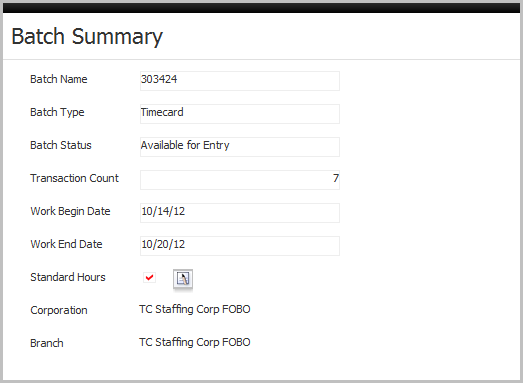
§ Batch Name – is a unique alpha-numeric field used to identify the batch. The batch name cannot have spaces or special characters; user defined batch names must contain at least one letter. If the batch name is left blank in the create batch workflow the system will create a batch name.
§ Batch Type – displays the type of transactions found/created in the batch.
§ Batch Status – has five indicators:
Available for Entry means a transaction can be added to the batch. Proof has not been executed for this batch and the user can add, view, delete or proof the batch.
In Use means another user has opened the batch; generally seen by users other than the one working in the batch. The system prevents other users from viewing, deleting, proofing, posting or adding a transaction to the batch.
Selected for Proofing means batch is in the proofing process; generally seen by users other than the one running the proof workflow. The system prevents other users from deleting, proofing, posting or adding a transaction to the batch.
Proofed means the batch has completed the proof workflow. Proof can be run as many times as needed; data entered is not committed so corrections based on the diagnostics report as well as additional updates are still permitted.
Selected for Posting means batch is in the posting process; generally seen by users other than the one running the post workflow. The system prevents other users from deleting, proofing, posting or adding a transaction to the batch.
Posted means the batch has completed the post workflow. The system prevents other users from deleting, proofing, posting or adding a transaction to the batch.
§ Count – displays the number of transactions in the batch and is automatically updated as transactions are created/deleted.
§ Work Begin/End Date – Once the end date is set the work period start date is populated. The start date is calculated on the pay frequency (e.g., weekly or monthly) and the end date. Thus if the pay frequency is weekly then the begin date will be seven days prior to the end date.
§ Standard Hours – this flag tells the timecard entry screen to populate the value from the contract assignment’s standard hours field into the total hours/units field. Click on the workflow icon to remove the flag.
§ Corporation – the entity linked to the contract assignment and the employee. This entity is for the Federal ID/Employer ID under which the timecards in this batch will be reported to the Federal Government. In a system without the Financials component this field is not displayed.
§ Branch – the office linked to the contract assignment.
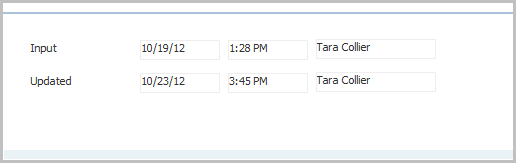
3) The bottom section of the summary segment displays the Date and Time based vital statistics.
Batch Properties:
§ A batch is a group of like transactions such as Timecards, Direct Hire Billings, A/R Adjustments, A/R Payments, etc.
§ All transactions entered into the system are in batches.
§ A batch can consist of single or multiple Timecards or A/R Payments, etc., but a batch cannot consist of both Timecards and A/R Payments, etc.
§ Since batches are independent of each other, one user can proof and post their group (or batch) of timecards while not affecting another user’s batch. However, multiple batches can be proofed and posted at the same time.
§ When the system presents totals of items in the batch, it will not include the timecards added to another batch.