Email Job Details
Follow the Email Job Details workflow to email a candidate the job description for a job order.
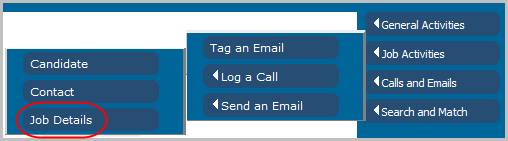
1) Select Job Details from the Calls and Emails Send an Email menu in the workflows control panel.
If running this workflow on a single candidate the following will occur:
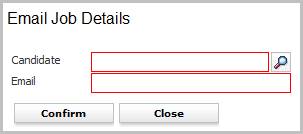
2) The Email Job Details workflow will open in a new window.
3) Enter the candidate name and click Confirm to continue workflow.
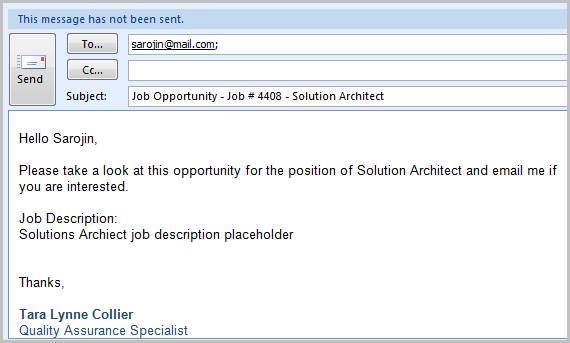
4) After the Email Job Details workflow closes an email will open displaying the job description from the job order. Edit the email as necessary and click send.
If running this workflow from the Submittal Tracking, Contractors Assigned or Candidates Placed segments the following will occur:
1) Select the candidates to email from the segment, and then select Job Details from the Calls and Emails Send an Email workflow menu.
2) The Email Job Details workflow will open in a new window.
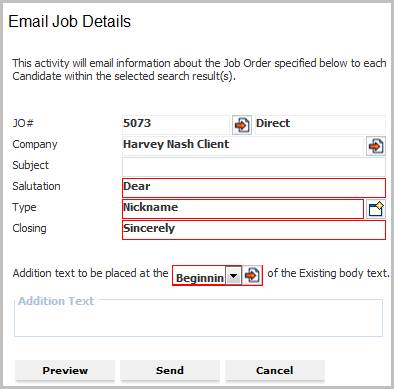
3) While updating the form notice that fields marked in red are required to complete the workflow; and that by clicking on the buttons to the right of certain fields, a new window will open allowing you to search and select options related to that specific field.
§ Subject – if you do not enter a subject the default will be Job Opportunity.
§ Salutation & Closing – are free text fields that can be changed as desired.
§ Type – from this pick list you can choose how to address the candidate; the nickname is the default selection.
4) Enter Additional Text as desired and choose whether to place this text before or after the job description.
5) After updating the form select what action to take next:
§ Preview – will open a sample email that allows you to review your choices prior to sending the email. Note: close the email to return to the workflow; do not send this email.
§ Confirm – sends emails to the candidates selected from the segment.
§ Cancel – closes the workflow without sending the emails or saving the changes you made in the workflow view.

This is a sample of the preview email.
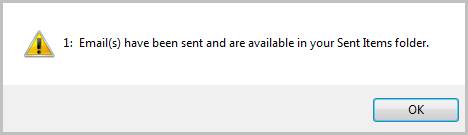
6) After clicking Send a message will open to confirm the workflow is complete and alert you to any records not included in the workflow.
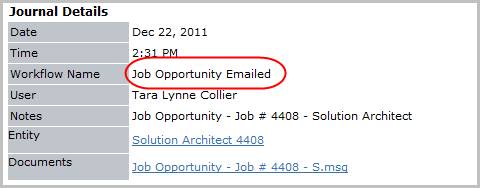
5) From both workflows the Job Opportunity Emailed entry is posted to the journal.