Job Poster
The job poster segment is used to keep track of the locations where the job is posted and the status of each submission. Use these instructions to post a job to an internal website, a job board, or to a social media site.
1) Select Job Poster from the segments control panel.
2) The Job Poster Segment records all of the information used to post the Job Order to an internal web site, external job boards, and social media sites.
3) Adding a Job Board Posting is done from the workflow buttons on this segment.
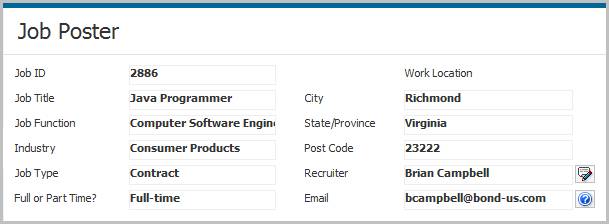
4) The segment is separated into two sections; the top section displays selected data fields from the Job Order relating to the job location, function, type and longevity.
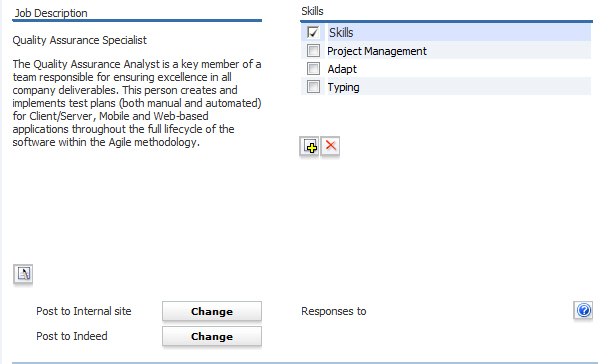
5) Job Description automatically pulls data from the Job Description field on the Job Summary segment, but can be edited here. You may also copy and paste a job description into the field. For example, you may want to copy a job description from the Monster web site and paste it into the Job Description field here. NOTE: Due to various formatting differences between HTML and RTF, you may need to do some clean-up after the description is pasted. For example, there may be extra lines added or special characters that do not come over correctly.
5) Select Post to Internal site and/or Post to Indeed via the Change button and then edit the segment and enter the email address of the recipient who will receive responses from job inquiries sent from your company's internal website. Note: the email address can be a distribution or group list type of email address. If left blank emails go to the recruiter listed in the top section of the segment.
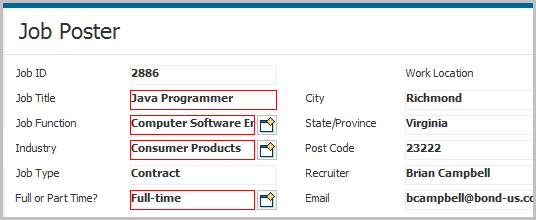
6) Click Edit to update job title, function and industry information.

7) Fields marked in red are required to save changes to the segment. Required fields must be populated if you are posting the job to Indeed.
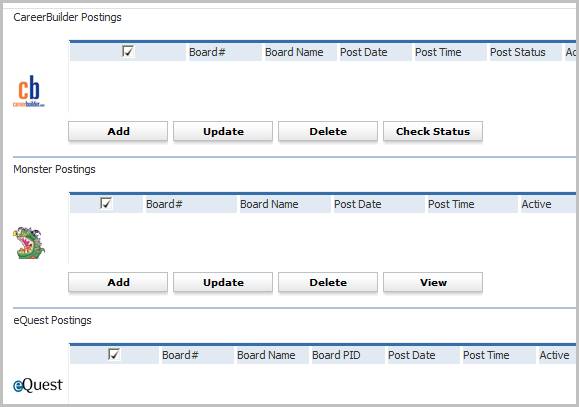
8) Clicking save will accept changes or cancel to discard.

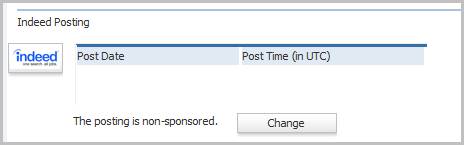
9) Scroll down the segment to view Indeed posting information. Update the Indeed posting to a sponsored posting by clicking the Change button. User must have IndeedSponsored permission active in order to change status of posting.
10) Scroll further down the page to post to external job boards: CareerBuilder, Monster or eQuest.