Release Job Order to Supplier
Follow these instructions to email a job order to third party vendors for assistance in filling.
1) Click on the Release Job Order button below the list box to launch the workflow.
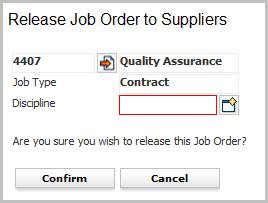
2) The Release Job Order to Suppliers workflow will open in a new window.
3) While updating the form notice that fields marked in red are required to complete the workflow; and that by clicking on the buttons to the right of certain fields, a new window will open, allowing you to search and select options related to that specific field.
4) The client can have contracts with many suppliers that are unique per discipline. The discipline that is chosen in this workflow selects suppliers with only that agreement. If you want to release under multiple disciplines re-run the workflow choosing a different discipline each time.
5) Click Confirm to complete workflow.
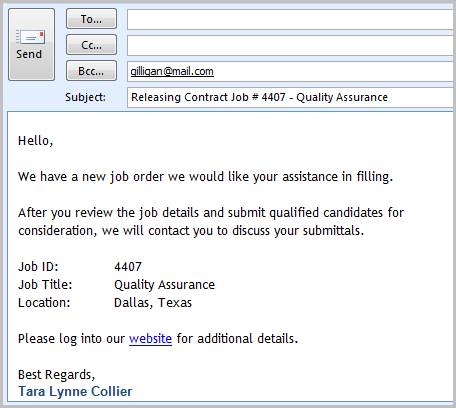
6) Once you select confirm, new messages from your integrated email application will open with the email body populated with the information on the job order and link to login and view the job on your web services site. Your integrated email signature is also merged below the text. Edit the emails as necessary and click send.
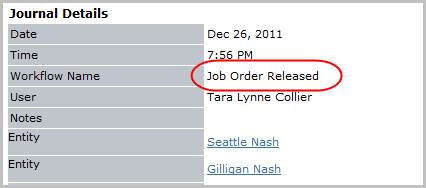
7) Verify the Job Order Released entry is posted to the journal.