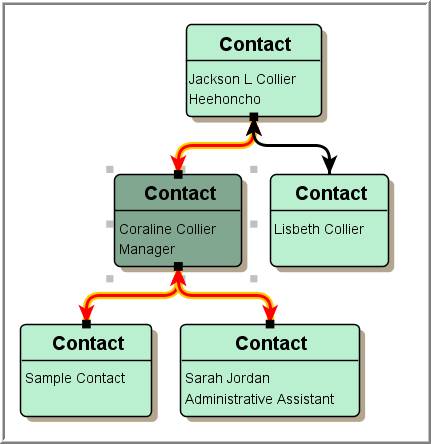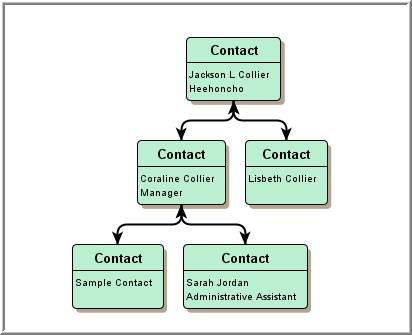
Direct Reports Org Chart
Use these instructions to display the contact’s direct reports in an organization chart.
1) Select Direct Reports Org Chart from the Contact Activities menu from the workflows control panel.
2) The Direct Reports Org Chart will open in a new window.
Org Chart Controls
1) The control tool bar at the top of the window allows you to modify the look of the org chart:

§ Delete Selection – removes an entity from the chart
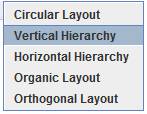
§ Type – changes the layout
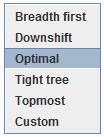
§ Style – tweaks the style chosen
§ Zoom In/Out – enlarges/shrinks the entire viewing area of the chart
§ Fit Selection /All – zooms in/out on a selected entity on the chart
§ Print – allows you to print the chart as it currently is in the window.
§ Access Entity – double click on any entity in the org chart to open that record in Adapt.
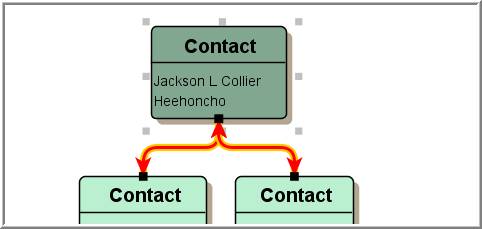
3) Click once on the block to highlight the relationship between the entity and its parent.
4) Once an entity block is selected use the org chart Delete Selection control to remove from the chart. Or double click on the block to open that entity record in Adapt.