Duplicate Position
Position Ribbon > Action Group > Duplicate

|
Duplicate Position Position Ribbon > Action Group > Duplicate |
|

Duplicate Position allows you to create a new position with many of the same settings as an existing position. This saves you time in the position entry process.
Once you duplicate the position, you can adjust its settings on the Position Viewer windows in StaffSuite.
Before Duplicating a Position
Make sure the position you want to duplicate is in currency before selecting Duplicate Position on the Position Ribbon. The Title Bar of the Duplicate Position window will show the company name, order number, and position number of the original position.
Duplicating a Position
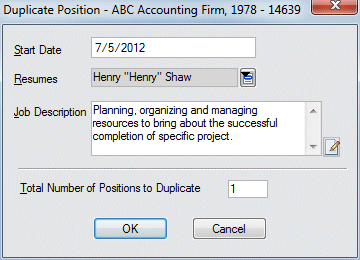
In the Start Date field, use  to select the date that the newly duplicated position(s) will start. For more information on using StaffSuite's calendar, click here. This field is REQUIRED
In the Resumes field, use the button to select the company rep that you will send resumes to concerning this position. This field is optional.
In the Job Description field, enter a general description of the new positions you are creating. This field is optional. Click the  icon to expand the field in a re-sizable dialog where you can enter and view all your text and use spell checking. Click here for more information about the re-sizable dialog and spell checking.
In the Total Number of Positions to Duplicate field, enter the number of new positions you want to create. This field is REQUIRED.
When you are satisfied with your changes, click the OK button.
What happens when a position is duplicated?
Basically, everything from the original position defaults into the new position, except the following:
No associated activities are copied from the original position
No notifications are copied from the original position
The Position Entered By is set to the user's ID
The Position Date and Time is set to the current date and time
If the original position was placed, employee name and social security number is NOT copied
Starting salary is not copied
Booked amount, invoice amount, and collected amount are not copied
Related Topics: