Reset Payroll
PayBill > Payroll > Payroll > Reset


|
Reset Payroll PayBill > Payroll > Payroll > Reset |
|

Reset Payroll resets the status of every transaction from a processed payroll back to a pre-processed status. For example, you may have accidentally selected the wrong criteria when processing a payroll run. Reset payroll allows you to "start over".
Once a payroll has been updated, it cannot be reset.
NOTE: Reset Payroll simply resets everything on the processing run. Once the reset is finished, you can redo the payroll process from scratch with different criteria.
Resetting Payroll
Upon selecting to reset payroll, the system displays the following grid:
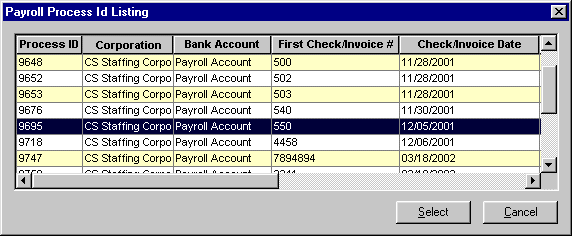
Click on the row containing the process which you would like to reset. Information in the following columns should help you select the correct process:
Process ID: The unique number identifying the payroll process
Corporation: The corporation (Federal tax ID) associated with the payroll process
Bank Account: The bank account from which the payroll checks will be paid
First Check/Invoice #: The first check number used for this payroll process
Invoice Type: Not used by the reset payroll process.
Check/Invoice Date: The calendar date of the processed checks
Process Date/Time: The date and time that the process was run
SS Rep: The Staffing Service Rep that ran the process
Completed: Indicates whether the process completed or was interrupted
Once you have selected the process, click  . If you want to close the grid without selecting a process, click
  .
.
The Reset Payroll window displays.
The first check number is the only editable field. If you do not want to reset all checks in a process, enter the starting number of the checks you DO want to reset.
Click  to reset the status of the selected transactions back to a pre-processed status. If you want to close the window without resetting payroll, click .
Related Topics:
|
|