Reset Direct Deposit Prenote
PayBill > Payroll > Direct Deposit > Reset Prenote


|
Reset Direct Deposit Prenote PayBill > Payroll > Direct Deposit > Reset Prenote |
|

Reset Direct Deposit Prenote resets the status of every transaction from a processed direct deposit prenote back to a pre-processed status. For example, you may have accidentally selected the wrong criteria when processing a direct deposit prenote.
NOTE: Reset Direct Deposit Prenote simply resets everything on the processing run. Once the reset is finished, you can redo the direct deposit prenote process from scratch with different criteria.
Resetting Direct Deposit
Upon selecting to reset direct deposit prenote, the system displays the following grid:
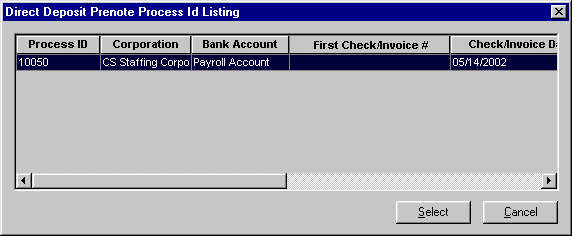
Click on the row containing the process which you would like to reset. Information in the following columns should help you select the correct process:
Process ID: The unique number identifying the direct deposit prenote process
Corporation: The corporation (Federal tax ID) associated with the direct deposit prenote
Bank Account: The bank account associated with the direct deposit prenote
First Check/Invoice #: The first advice number used for this direct deposit prenote process
Invoice Type: Not used by Reset Direct Deposit Prenote.
Check/Invoice Date: The calendar date of the prenote
Process Date/Time: The date and time that the process was run
SS Rep: The Staffing Service Rep that ran the process
Completed: Indicates whether the process completed or was interrupted
Once you have selected the process, click  . If you want to close the grid without selecting a process, click
  .
.
The Direct Deposit Prenote Reset window displays.
Check the information that defaults into the fields to make sure you have selected the correct prenote to reset.
Click  to reset the status of the selected transactions back to a pre-processed status. If you want to close the window without resetting direct deposit prenote, click .
Related Topics: